A full phone is rarely caused by one dramatic download. It is usually the result of years of screenshots, duplicate photos, forgotten podcasts, group-chat videos, and apps installed for a single occasion. If you want to clean phone storage, the goal is not to create a perfectly empty device. The goal is to make enough room for updates, new photos, and ordinary life without turning maintenance into a second job.
I prefer a short reset followed by a small monthly habit. You do not need a new cleaner app, a complicated filing system, or an afternoon spent examining every screenshot. You need a clear order of operations and a stopping point. A good system is one you can still live with six months from now.
Start with the storage screen, not your camera roll
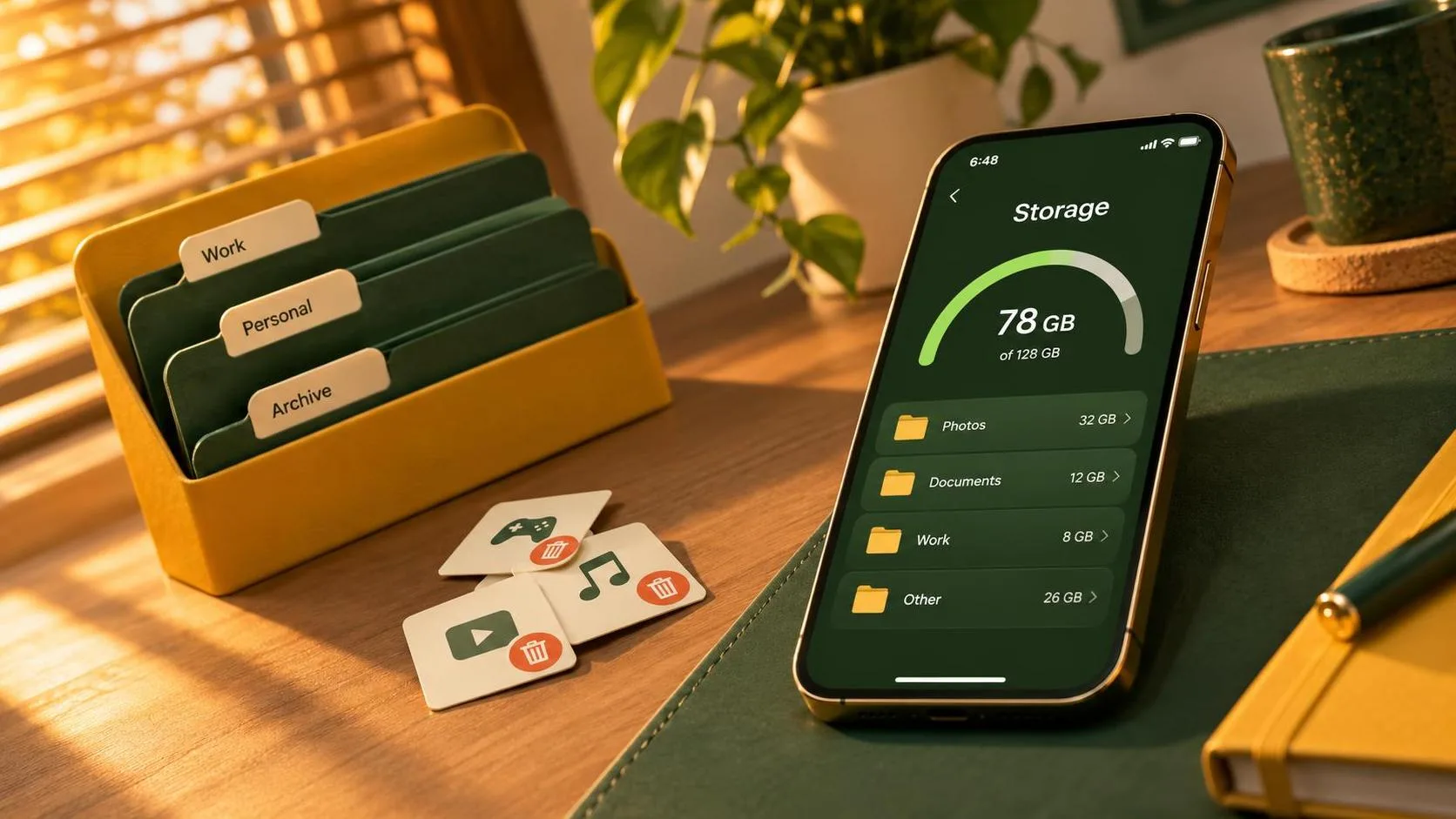
Before deleting anything, open your phone's built-in storage view. On an iPhone, go to Settings, General, and iPhone Storage. On Android, look under Settings, Storage, or Device Care, depending on the manufacturer. The labels differ, but the useful information is similar: which categories are consuming space and which apps are responsible.
This first look prevents a common mistake. Someone sees thousands of photos and spends an hour removing a few dozen, while a downloaded television season or a messaging app's media cache is using more space than the entire photo library. If you want to clean phone storage efficiently, begin with the largest categories and the easiest decisions.
Write down the top three space users. You might see Photos at 38 GB, Messages at 14 GB, and Spotify at 9 GB. That list gives you a practical target. Recovering 10 GB from three obvious sources is more useful than making hundreds of tiny decisions across the device.
Remove large files before making emotional decisions
Large videos are usually the fastest win. Open your photo library and search for videos, screen recordings, or recently added items. Review long clips, accidental recordings, and multiple takes. A 45-second video of a child blowing out birthday candles might be worth keeping; six nearly identical attempts usually are not.
Do not delete a meaningful file until you know where another copy lives. If your photos sync with iCloud Photos or Google Photos, confirm that synchronization is complete before removing anything. Cloud synchronization is not always the same as an independent backup. If a file exists only on the phone, deleting it can make it difficult or impossible to recover.
To clean phone storage without creating regret, use a temporary holding period for uncertain items. Move questionable videos to a computer or external drive, then leave them there for 30 days. If you never look for them, you have useful evidence that they can go. This approach is slower than pressing Delete, but it protects the memories that matter while still reducing clutter.
Screenshots deserve a separate pass. Keep receipts, travel confirmations, measurements, addresses, and information you still need. Remove old jokes, expired offers, search results, and instructions you saved but never used. A screenshot should have a job. When its job is finished, the file can leave.
Treat messaging apps and downloads as hidden closets
Messaging apps often collect files quietly. A family group can accumulate hundreds of forwarded videos, reaction images, and duplicate photos without anyone intentionally saving them. Look for storage-management tools inside Apple Messages, WhatsApp, Facebook Messenger, or your preferred app. Sort by file size where possible, then remove the largest items first.
Be cautious with work conversations and shared projects. A document in a chat may be the only copy you have. Save important files to a clear location such as Google Drive, OneDrive, Dropbox, or your computer before removing the message attachment. The point of clean phone storage is not to scatter important information into a new mystery location.
Next, check offline downloads. Netflix, Hulu, YouTube, Spotify, Apple Podcasts, Audible, Google Maps, and similar services can keep substantial files on your device. Delete completed podcasts, old playlists, downloaded movies, and maps for places you no longer visit. Streaming services let you download again later, so these are usually low-risk removals.

Make apps earn their space
Your phone probably contains apps installed for a trip, a store coupon, a furniture purchase, or a free trial that ended months ago. Open the storage list and look at apps you have not used recently. Ask one simple question: “What problem is this solving?” If you cannot answer quickly, remove it.
Deleting an app does not necessarily cancel a subscription. Review Apple subscriptions or Google Play subscriptions separately, especially if you installed a meditation service, fitness platform, photo editor, or cloud tool. An unused app might occupy only 200 MB, while its forgotten $8 or $12 monthly charge costs far more over a year.
Some phones offer offloading or automatic archiving. These options remove the app while preserving certain documents or settings. They can be useful for occasional apps, but they are not a complete solution. If you have not used an app in a year, keeping its placeholder can preserve the same decision clutter that caused the problem.
Build a simple system for new photos
The next step is to prevent another pileup. Turn on automatic photo backup if it fits your budget and privacy preferences, then choose one primary library. Using iCloud Photos and Google Photos at the same time can be useful for redundancy, but it can also create confusion about which library is complete and which one you should clean.
Once a week, spend five minutes removing obvious duplicates and failed shots. Do not attempt a full photo-curation session every Sunday. A small review after a birthday, vacation, or home project is easier because the context is still fresh. Mark favorites as you go, but do not create elaborate albums for every event unless you will actually use them.
To clean phone storage consistently, keep downloads temporary. Save a boarding pass, recipe, or document when you need it, then remove it after the trip, meal, or task. If a file needs to be retained, move it to the place where you normally look for documents rather than leaving it in Downloads.
Keep the maintenance small enough to survive
After the initial reset, schedule a 15-minute check once a month. Review the storage screen, delete large temporary files, clear completed downloads, and remove apps you installed for a one-time need. Put the check on the same day you review bills or subscriptions so it attaches to an existing routine.
A useful stopping rule is to stop when you have 10 to 20 percent of your phone's capacity free, or when the storage warning disappears. You do not need to chase an empty device. Space is a practical buffer, not a score. Leaving room helps software updates install and gives you flexibility during a busy week.
If your phone remains full after this process, the answer may be a larger storage plan or a device with more capacity, but buy that only after identifying the real source. A $2.99 cloud tier can be reasonable if it replaces repeated emergency cleanup. A new phone is a much larger decision. Clean phone storage first, measure how quickly the space fills again, and then choose the smallest solution that removes the recurring friction.
The setup is easy. The maintenance is the test. Use the built-in storage report, remove the biggest low-risk files, question unused apps, and give important memories a reliable home. That is enough to clean phone storage without turning your digital life into another project.