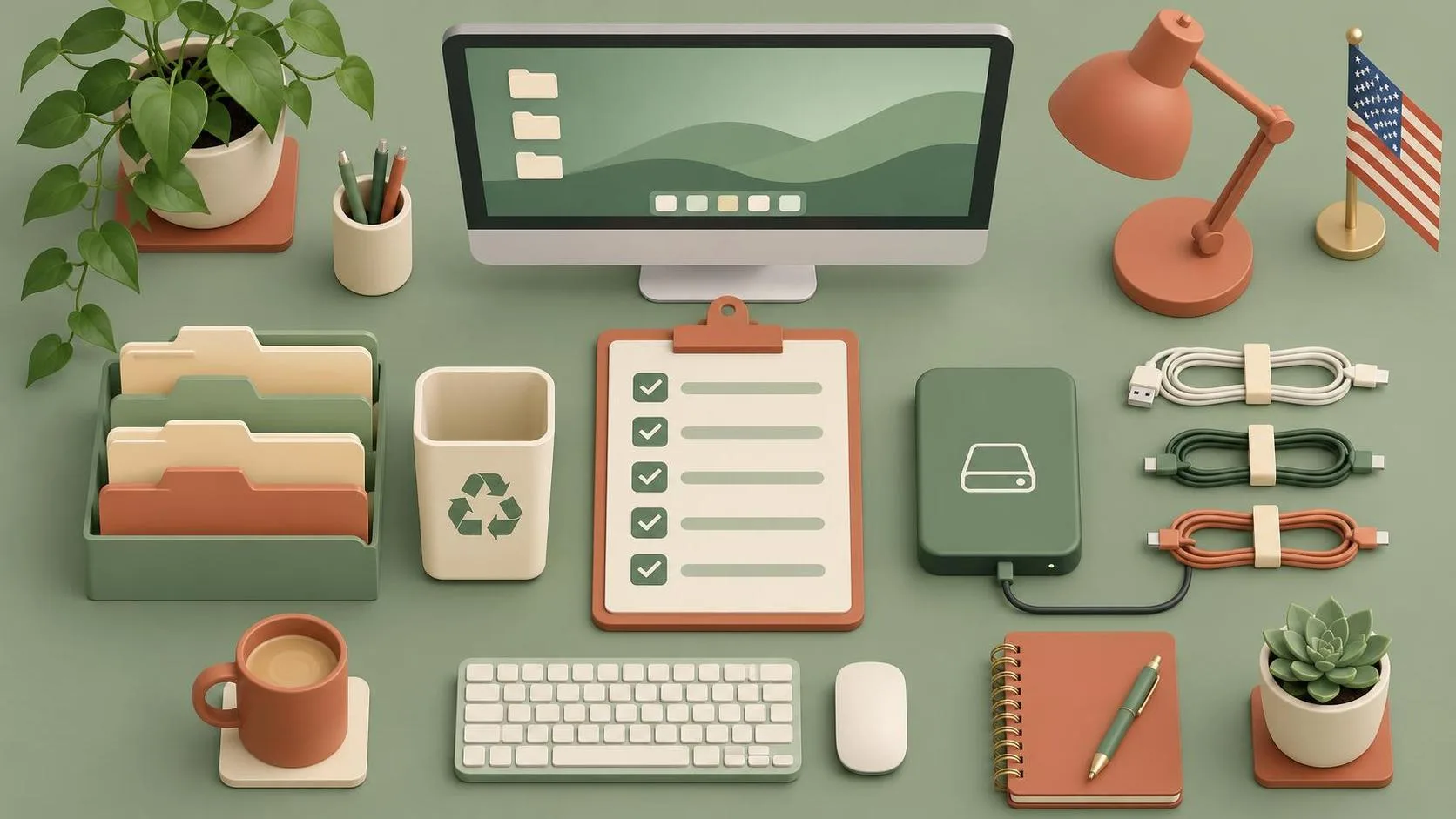
If you are wondering how to clean up pc clutter, start with the things that are easy to identify and safe to remove: temporary files, unused apps, and obvious downloads you no longer need. Then review what starts automatically when you sign in. You do not need a paid cleaner or a perfectly organized desktop. A focused half hour can make your computer easier to use without turning the job into a weekend project.
These steps are for Windows PCs. Menu names can vary by Windows version, and a work computer may have settings managed by your employer. If a program or file belongs to your workplace, check before removing it.
Start with a backup and a quick storage check
Before deleting anything important, make sure you have a usable backup of files you would miss: documents, photos, tax records, and other personal material. An external drive or a backup service can work. Open a few backed-up files to make sure you can actually access them. Cloud synchronization is useful, but it is not always a separate backup: deleting a synced file may delete it from other connected devices too.
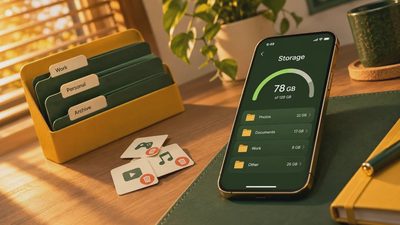
Next, open Settings and look for System, then Storage. Windows shows categories that can help you see where space is going, such as installed apps and temporary files. Start with the largest category you recognize rather than sorting every folder on the machine.
If the drive is nearly full, prioritize recovering space. If you have plenty of space but the computer feels slow, focus on startup apps, updates, and the checks later in this guide. Deleting a few documents will not necessarily make a slow PC faster.
How to clean up pc storage safely
In Storage settings, open Temporary files and review the categories before selecting anything. Windows can identify items such as temporary system files and Recycle Bin contents. The exact choices vary, so read each description. Do not select Downloads if you have not reviewed that folder, and leave anything you do not understand unchecked.
Open Downloads in File Explorer and sort by size or date. Old installers, duplicate exports, and documents you have already filed elsewhere are good candidates for deletion. Open a file if its name is unclear. If you find something worth keeping, move it to a sensible home, such as Documents, rather than creating a complicated folder system on the spot.
Check your Recycle Bin before emptying it. Once you empty it, ordinary recovery is much harder. The same goes for emptying a cloud service's trash: check the service's retention rules and make sure you are not deleting the only remaining copy.
Storage Sense, available through Windows Storage settings, can automate some temporary-file cleanup. Review its settings before turning it on, especially any options involving Downloads or cloud content. An automatic rule should do less than you would do yourself, not surprise you later.
Remove apps you no longer use
Open Settings, then Apps, and look for Installed apps or Apps & features. Sort by size if that option is available, and review the list. An old game or an application you installed for one project can take up more room than hundreds of small documents.
Before uninstalling, ask: “What problem is this solving?” Keep an app if you use it, need it to open important files, or know another program depends on it. Leave unfamiliar drivers, security software, and manufacturer or system components alone unless you know what they do. Removing the wrong component can create more work than the space is worth.
Uninstalling an app does not necessarily cancel its subscription or delete its online account. If you are paying for something you no longer want, sign in to the provider and check its cancellation process and renewal date separately. Also check whether you need to export any data before closing an account.
Reduce startup clutter
Some apps open as soon as you sign in, even when you only need them occasionally. In Windows, check Settings under Apps and Startup, or open Task Manager and look for Startup apps. Disable automatic startup for recognizable extras you do not need immediately, such as a chat or music app. You can still open them manually.
Leave security tools and unfamiliar entries enabled until you understand their purpose. If you disable something and miss it, return to the same list and turn it back on. Restart the computer afterward and notice whether signing in feels less crowded; do not expect every change to produce a dramatic speed boost.
Browser clutter deserves a separate look. Remove extensions you no longer use through your browser's extensions menu, especially ones with broad access to websites. Closing a large collection of tabs can also free resources while you work. Save the few pages you need to revisit instead of keeping every possibility open indefinitely.
Check for problems a cleanup cannot fix
Install Windows updates through Settings and restart when prompted. Then run a scan using Windows Security, or the security software already managed on your PC. You do not need to install several overlapping antivirus programs to make the computer safer; they can add complexity and may conflict.
If the machine remains unusually slow, check Task Manager while the problem is happening. The Processes view can show whether an app is using a lot of processor power or memory. Save your work before closing an unresponsive app, and avoid ending processes you do not recognize. Persistent crashes, a failing drive, or a machine that cannot install updates may need repair or professional help rather than more deleted files.
Skip registry cleaners and tools that promise a one-click miracle. They can be difficult to evaluate, and removing registry entries is not a reliable routine fix for a slow computer.
Make the reset easy to repeat
Once a month, spend ten minutes reviewing Downloads, uninstalling anything clearly unused, and checking whether new apps have added themselves to startup. Empty the Recycle Bin only after a quick look. If you use cloud storage, make sure you understand which files are synced before moving or deleting them.
You do not have to finish every folder today. A good system is one you can still live with six months from now, even after a busy week. Put the next short check on your calendar and get back to using your computer.