If you are wondering how to reduce phone usage, start by making the distracting parts of your phone less accessible, not by trying to use it as little as possible. Check which apps pull you in, turn off nonessential notifications, and choose one or two times or places where your phone stays out of reach. Keep the useful parts: navigation, messages, banking, and whatever else makes your day easier.
The goal is not a perfect screen-time number. It is a phone that interrupts you less and is easier to put down when you have finished what you came to do. You can set up the basics in about 20 minutes, without buying another app.
Find the use you actually want to change
Before changing settings, look at the built-in activity report on your phone. On an iPhone, open Screen Time in Settings. On many Android phones, look for Digital Wellbeing in Settings; the exact menu can vary by device. Review a few days rather than treating one unusually busy day as your normal pattern.
Notice which apps account for the most time, but also look for the moments that bother you. A long video call with a friend may be time well spent. Ten short visits to a shopping app between meetings may be the habit you want to change, even if the total is smaller.
Pick one specific target for the next week. For example: “I want to stop opening social media before I get out of bed,” or “I want to check work messages twice after dinner instead of every few minutes.” A clear target gives you something more useful to evaluate than an arbitrary daily limit.
If your report includes time spent using navigation, listening to audio, or handling work, keep that context in mind. The number is a clue, not a grade.
How to reduce phone usage by changing notifications
Notifications are often the easiest place to start because they interrupt you before you have decided to pick up the phone. Open your notification settings and review the apps that send alerts most often. Turn off promotional messages, game prompts, shopping alerts, and social-media updates that do not need an immediate response.
Keep alerts that serve a real purpose. Calls from people who may need you, calendar reminders, delivery updates you are expecting, and security alerts can all earn their place. For work messages, consider whether your job requires immediate responses or whether a scheduled check would do. If someone depends on reaching you, agree on a reliable way to contact you before silencing that channel.
Use your phone's Focus or Do Not Disturb settings for a predictable block, such as dinner or the first half hour of the workday. Configure allowed contacts and apps, and check how calls behave on your device. Then ask someone to send a test message or call if getting through matters. A quiet phone is only helpful if it still lets the right things through.
You do not have to solve every alert at once. Each time an unnecessary notification appears, turn off that category if your phone offers the option. This takes a few seconds and avoids a long settings project.
Add a little friction to distracting apps
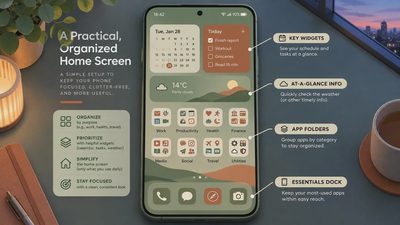
Move the app you want to open less often off your home screen. You can still find it through search or your app library, but the extra step creates a pause. Put tools you use intentionally, such as your calendar or camera, in the convenient spots instead.
If that is not enough, sign out of the distracting app or remove it from your phone and use its website when needed. Before deleting anything, make sure you know how to sign back in and have access to any required authentication method. Removing an app does not necessarily close your account or cancel a paid subscription; check those separately if that is your intention.
Built-in app limits can help, too. Choose a limit based on your recent use and the change you want, rather than setting a number so low that you dismiss it every day. These limits are reminders, not locked doors: you can generally override them. If you keep doing that, try moving the phone away during the time you are most likely to open the app.

Give your phone a place to be
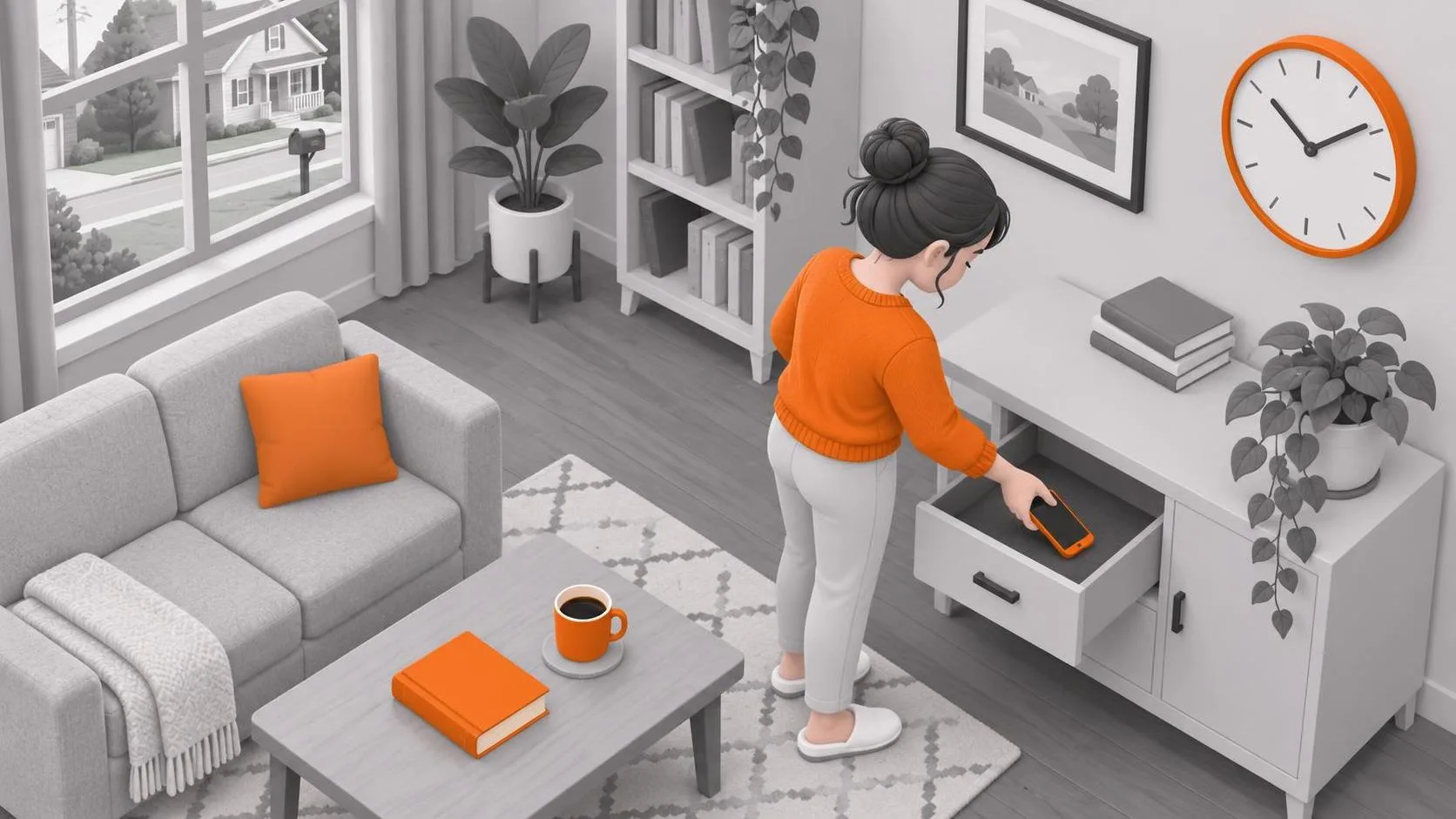
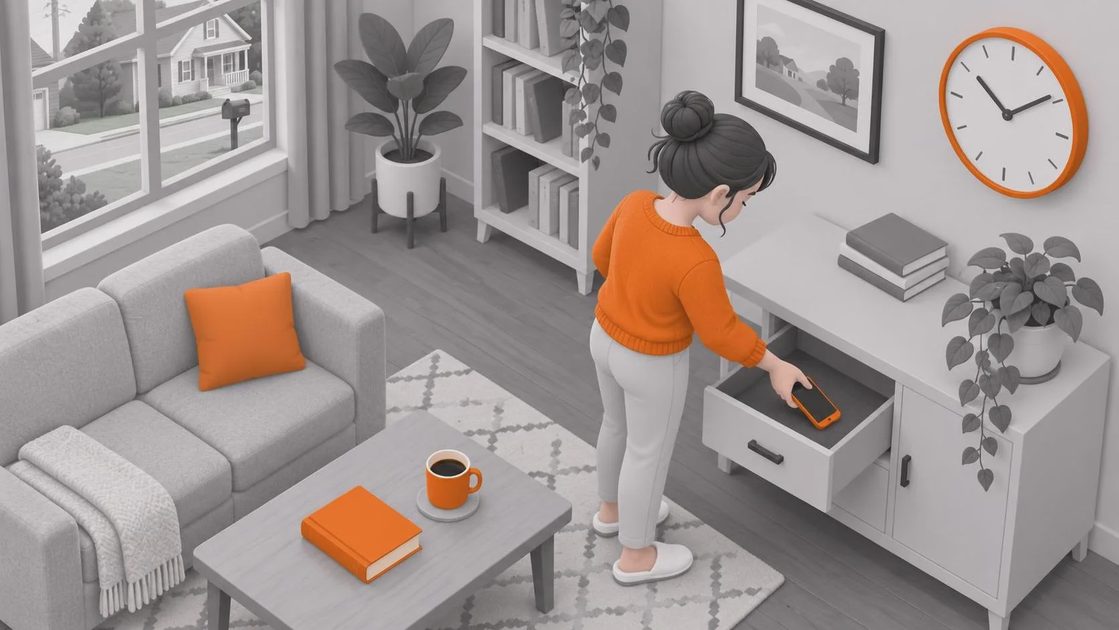
Physical distance is useful when settings alone are not enough. Charge the phone across the room at night, leave it in a drawer during a focused work block, or put it on a shelf during dinner. Choose a spot where you can still hear important calls if you need to.
Match the arrangement to the reason you reach for the phone. If you use it as an alarm, place it far enough from the bed that checking feeds is inconvenient but close enough to hear. If you need it for a two-factor authentication prompt while working, keep it nearby during sign-in, then put it away again. The aim is not to make ordinary tasks difficult.
It also helps to decide what will replace a habitual check. Leave a book beside the couch, keep a paper note for ideas that occur during a meeting, or take a short walk while waiting for an appointment. The replacement does not need to be productive. It just needs to be available when your hand reaches for the phone.
Review the change after a week
At the end of seven days, look at the same activity report and ask a more important question: did the specific part of your day improve? You may have spent fewer minutes in the target app, or you may simply have had a calmer breakfast. Either is useful information.
If nothing changed, adjust the obstacle. A home-screen move may be too easy to bypass; signing out or charging the phone elsewhere might work better. If you missed a necessary message, restore that alert or make the exception clearer. Avoid adding five new restrictions to fix one habit.
Once the change feels ordinary, review another app or another time of day. A quick check every few weeks is enough for most people; there is no need to monitor yourself constantly. A good system is one you can still live with six months from now, including on the weeks when work runs late and dinner is whatever is already in the fridge.