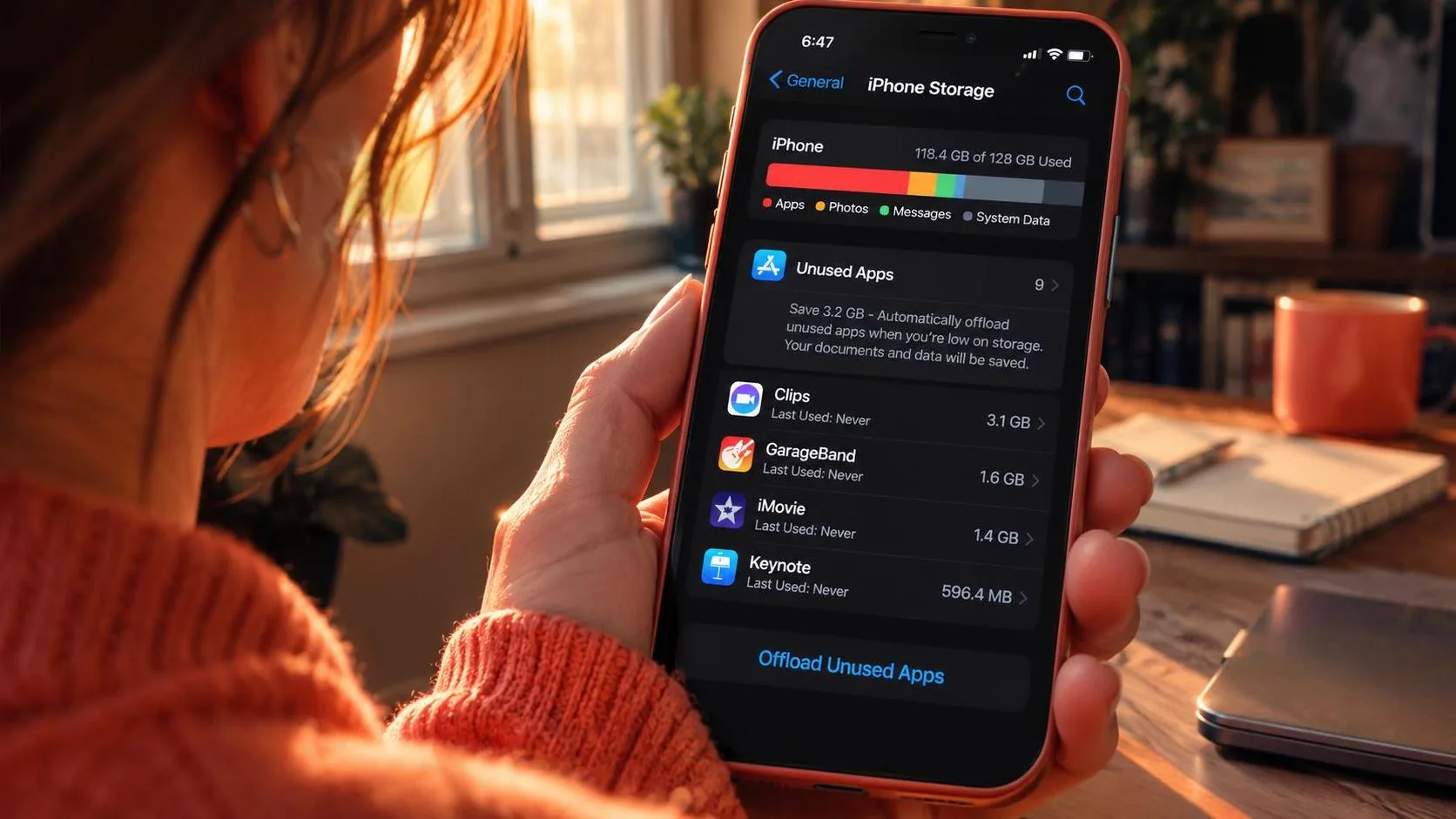
You can offload unused apps on an iPhone or iPad to reclaim the space taken up by the app itself while keeping its documents and data on your device. When you need the app again, you can try to reinstall it and pick up where you left off. It is a useful middle ground between keeping everything installed and deleting something you may need later.
The important limitation: offloading is not a backup, and it does not cancel subscriptions. An app also needs to remain available for you to download it again. For anything essential to travel, work, banking, or account access, think twice before letting the device remove it automatically.
How to offload unused apps on an iPhone or iPad
To offload one app yourself, open Settings, tap General, then tap iPhone Storage or iPad Storage. Select an app from the list and tap Offload App. Confirm your choice when prompted.
On the app's storage screen, you can see how much space belongs to the app and how much belongs to its documents and data. Offloading removes the app portion, not the saved documents and data. If those documents occupy most of the space, offloading may save less than you expect.
To reinstall an offloaded app, tap its icon on the Home Screen or find it in the App Store. You will generally need an internet connection. If the app is no longer available, reinstalling may not be possible, even though its data remains on the device.
Before removing anything, give the storage list a minute to populate. Then look for a large app you recognize but rarely open. A game you return to occasionally is a more comfortable first candidate than the app that provides your work login codes.
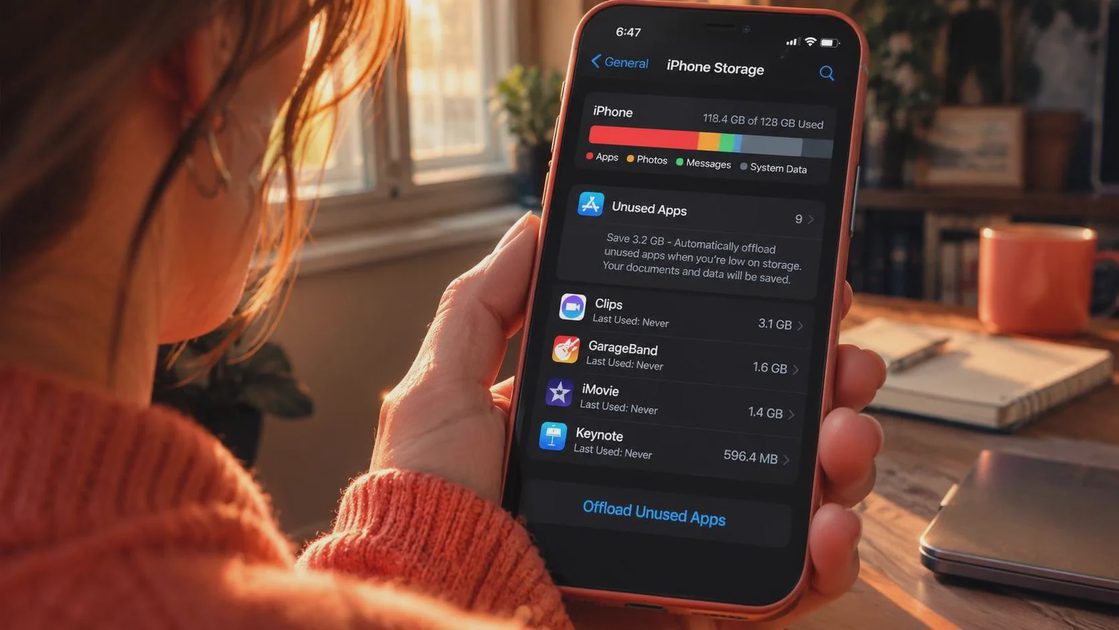
Turn on offload unused apps automatically
Apple also offers an automatic setting called Offload Unused Apps. On iPhone or iPad, look in Settings under App Store; on some software versions, the path is Settings, then Apps, then App Store. Turn on Offload Unused Apps to let the device manage eligible apps when storage is low.
Settings can move between software versions, so use the search field at the top of Settings if you do not see the switch. To stop automatic offloading later, return to the same setting and turn it off. That does not automatically reinstall apps already removed; reinstall the ones you want individually.
Automatic offloading suits a device that regularly runs short on space and has reliable internet access. Manual offloading is a better fit if you travel often, rely on specialized work software, or want control over which tools are ready offline. Either way, the feature is a storage tool, not a complete app-cleanup system.
Offloading versus deleting: What stays?
When you offload unused apps, their documents and data remain on the device. Deleting an app generally removes the app and its associated local data. Information stored separately in an online account may still be available after deletion, but that depends on the service and whether it synced successfully.
Neither choice is a substitute for checking a backup. Before deleting a note-taking, recording, or photo-editing app, open it and confirm that important work is accessible somewhere else. If the app offers an export, save a copy in a location you can find without that app. For an authenticator, follow its transfer or backup instructions before removing it; losing access to sign-in codes can be inconvenient to fix.
Also check downloads you expect to use offline. Offloading preserves documents and data, but the app itself must be reinstalled before you can use it. A saved boarding pass or downloaded map is not much help if you cannot open its app and have no connection to restore it.
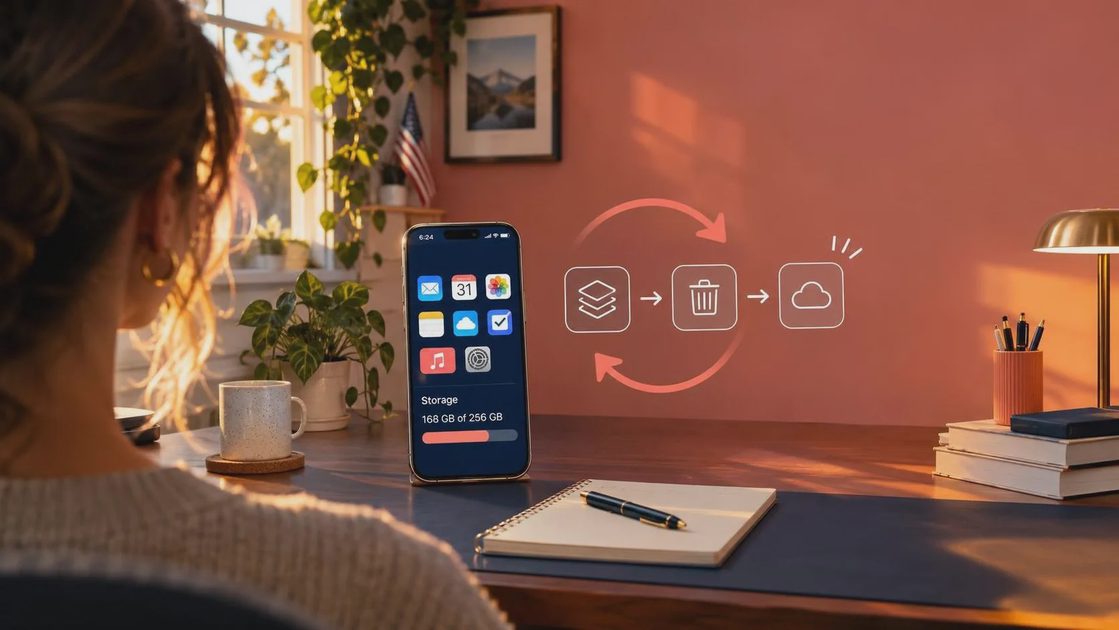
What offloading does not fix
An offloaded app can still have a paid subscription attached to your Apple Account or to an account with the service itself. To review Apple-billed subscriptions, open Settings, tap your name, and tap Subscriptions. For subscriptions billed directly by a company, check that company's account or billing page. Removing or offloading the app does not end either kind of charge.
Offloading also leaves the app's local documents and data in place. If a podcast app has accumulated downloads or a messaging app has a large attachment history, removing the app alone may not reclaim the space you want. Look inside the app for download or storage controls, and review what you are deleting before clearing it.
Finally, an offloaded app may leave its icon visible. That is convenient for reinstalling, but it does not necessarily make your Home Screen feel calmer. You can organize or remove an icon from the Home Screen separately without assuming that doing so cancels an account or removes its data.
A simple routine for a less crowded device
I would start with a short manual pass rather than trying to make every decision at once. Open your storage list and choose two or three large apps you have not needed recently. For each one, ask: What problem is this solving, and would I need it without internet access?
Offload the occasional-use apps whose data you want to retain. Delete an app only after checking that any important information is backed up or exported. Leave critical access tools installed, especially if replacing them would involve a long account-recovery process.
After a month, notice which apps you reinstalled. Those are earning their place. For the ones you did not miss, check for subscriptions or accounts before deciding whether to delete them entirely. The setup is easy; the maintenance is the test. A small review you can repeat is more useful than a perfect cleanup you never want to do again.