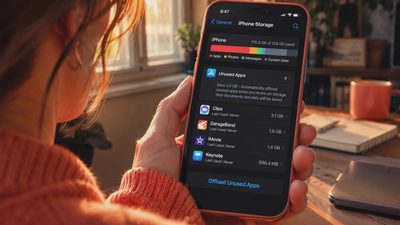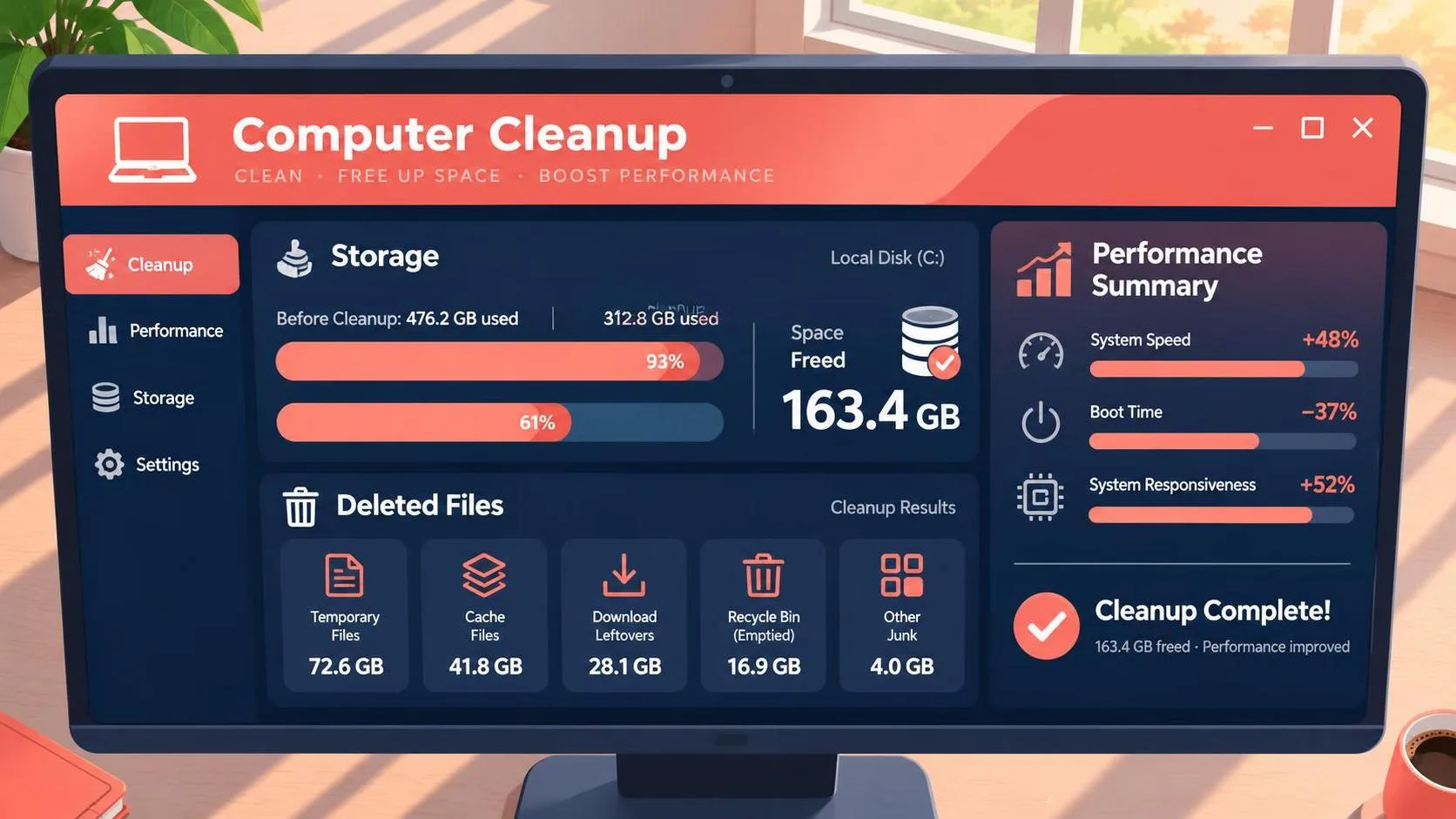
The best pc cleaner for most people is already on their computer: Windows Storage settings. Start there to review temporary files and make room, then use the built-in uninstall and startup controls to address unwanted apps. You probably do not need a paid cleanup subscription. A cleaner can reclaim space, but it cannot promise to make an aging or malfunctioning computer feel new.
If you want a specific place to start, Windows Storage Sense suits people who want routine cleanup without another app. Microsoft PC Manager is an optional Microsoft utility for people who prefer a separate dashboard. TreeSize Free is useful when you need to see which folders are taking up space; it is primarily an analyzer, so you still decide what to remove. Download any extra utility from its publisher’s official site, and review its options before deleting anything.
Start with the problem, not the software
Before installing a pc cleaner, ask what is bothering you. A nearly full drive calls for a different response than a slow startup or a browser crowded with tabs.
Open Settings and look under System, then Storage. Windows shows how space is being used and offers a Temporary files view. Review the categories before confirming deletion. Temporary files and the Recycle Bin may be useful places to start, but the Recycle Bin can contain something you meant to restore. If Downloads appears as a cleanup option, leave it unchecked unless you have reviewed it: that folder often holds invoices, installers, and other files you intended to keep.
For a slow startup, look at startup apps in Settings or Task Manager. Disable automatic startup for an app you recognize and do not need immediately; that does not uninstall it. Leave unfamiliar security, hardware, and system components alone until you know what they do.
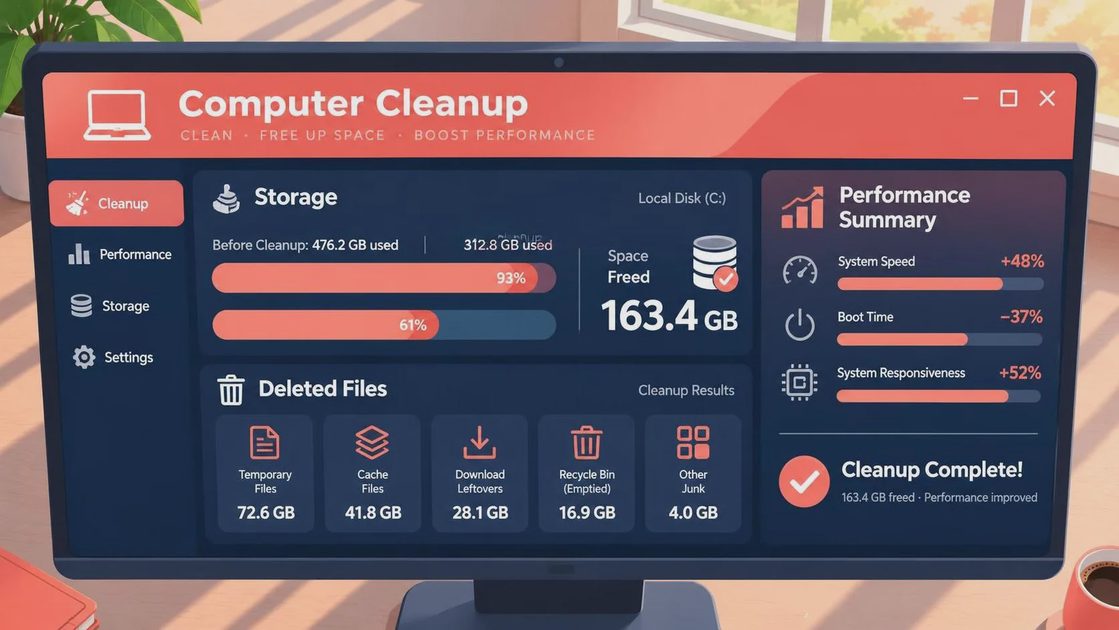
These steps solve two different problems without adding a tool you will need to maintain. If the computer is still slow after you have freed space and restarted it, check for pending updates and open Task Manager to see whether a particular app is using unusually high resources. A cleanup app is not a substitute for diagnosing a failing drive, insufficient memory, or a connection problem.
When a separate pc cleaner makes sense
A separate tool is worth considering when it answers a question Windows does not make easy enough for you. For example, a folder-size analyzer can reveal that old video exports or an abandoned backup are occupying most of your drive. That is more useful than a large, mysterious “junk found” number.
TreeSize Free can help you explore folder sizes. Treat the results as a map, not a deletion list. A large folder is not automatically unnecessary, and Windows may restrict access to some locations. Stick to files you recognize in your own folders, such as old downloads or completed project exports. Avoid deleting items from Windows, Program Files, or application data folders just because they are large.
Microsoft PC Manager is another option if you prefer a dedicated utility. Check which actions it proposes and whether you actually need them; Windows already provides many routine maintenance controls. Features and availability can change, so review Microsoft’s current description before installing.
I would skip any pc cleaner that insists you must pay immediately to fix an alarming number of errors. Counts can reflect minor entries or temporary files, not serious faults. Also be cautious with bundles that add browser extensions or unrelated utilities during installation. Read each screen, decline extras, and stop if the installer is not clear about what it will change.
Cleanup actions to approach carefully
Registry cleaning rarely deserves a place in a normal maintenance routine. The Windows registry holds configuration information, and removing entries without a clear reason can cause problems while offering little practical benefit. Do not let a tool automatically “repair” hundreds of entries simply because it labels them obsolete.
Duplicate-file removal also needs human review. Two files with the same name may contain different versions; even identical copies may serve a purpose in separate projects or backups. Use a tool that lets you preview results and choose locations. Keep a verified backup before bulk deletion, especially when sorting photos or work files.
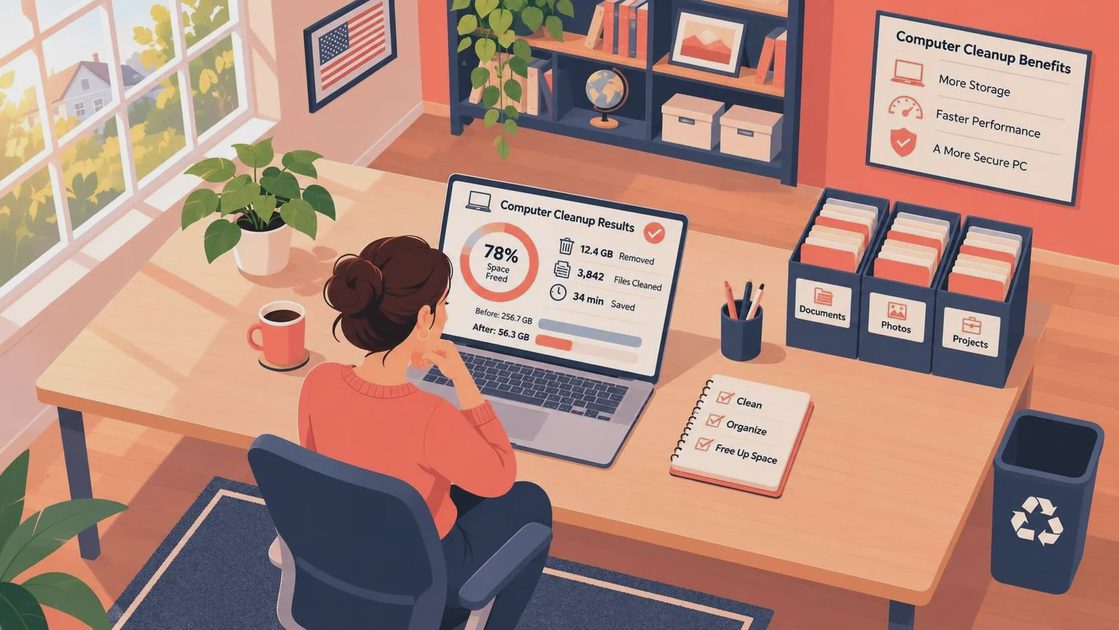
Browser cleanup has a trade-off, too. Clearing a cache can recover some space or help troubleshoot a page, but deleting cookies and site data may sign you out or remove saved website preferences. If one site is misbehaving, try clearing that site’s data rather than wiping everything. Saved passwords are a separate category in many browsers, so read the prompts rather than assuming what will be removed.
Finally, cloud folders need special care. Deleting a synced file can also delete it from the cloud and other connected devices. If your goal is to free local space while keeping the online copy, use your cloud provider’s option for making a file online-only, and confirm that syncing has completed first.
A maintenance routine that takes less attention
Once a month, give your PC a short check rather than running an aggressive scan every day. Review Storage, empty the Recycle Bin after a glance, and uninstall one or two apps you recognize and no longer use. In Settings, the installed-apps list is a better starting point than manually deleting an app’s folder.
Turn on Storage Sense if its available settings match your habits. Read its choices for temporary files, Recycle Bin contents, and Downloads carefully; leave Downloads out of automatic cleanup if you use it as a holding area. You can adjust the schedule and revisit it later. A good system is one you can still live with six months from now.
If you do choose a paid pc cleaner, check the renewal date, cancellation process, and whether the features solve a problem the built-in tools did not. Give yourself a month to see whether you actually open it. The setup is easy. The maintenance is the test.