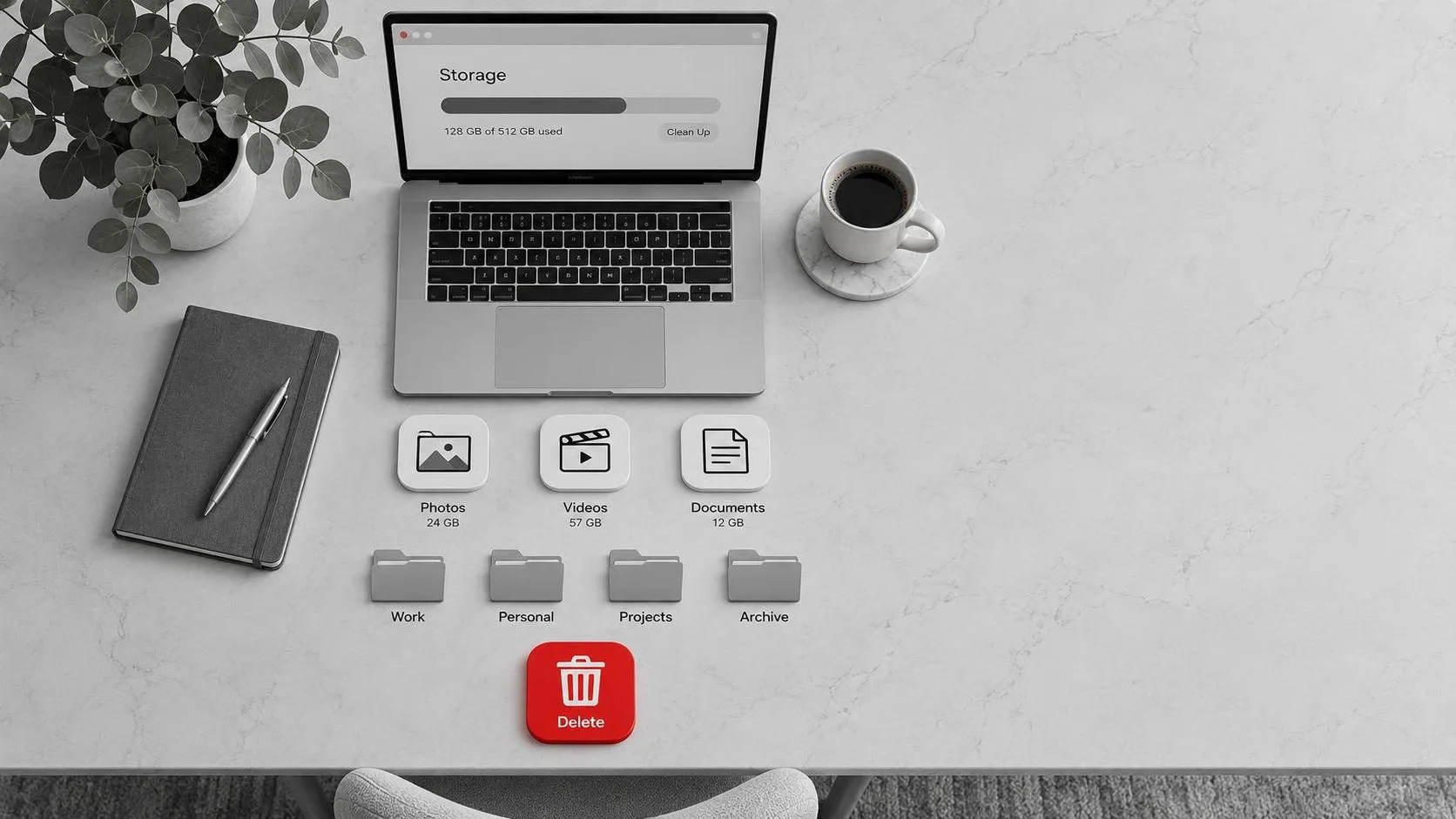
A disk clean up is a way to reclaim storage by removing temporary files, old downloads, unused apps, and other things you no longer need. On a Windows PC, start with the built-in Disk Cleanup tool or the Storage settings page. Review what each category contains before deleting it, especially Downloads and backups. You do not need to install a cleaner app to make useful progress.
If your computer is nearly full, the goal is breathing room, not an immaculate drive. Give yourself 15 minutes, check the largest categories first, and stop once you have enough space for your work and updates.
Start with the built-in disk clean up tool
Windows calls its utility Disk Cleanup, even though you may see the task written as disk clean up. To open it, select Start, type “Disk Cleanup,” and choose the app. If prompted, select the drive you want to clean, usually C:. Windows will calculate how much space different file categories could free.
Select a category to read its description before checking its box. Temporary files and thumbnail caches are common starting points; Windows and apps can generally recreate thumbnails when needed. Emptying the Recycle Bin can also recover space, but open the bin first if there is any chance you might want something back.
For additional options, select “Clean up system files,” then review the new list. You may see Windows update files or previous Windows installations. Removing a previous installation can free considerable space, but it can also remove your ability to return to the prior version of Windows. If you are unsure whether you might need that option, leave it alone for now.
Once you are comfortable with the selections, choose OK and confirm deletion. The amount recovered depends on what is actually on your PC; a small result does not mean you did anything wrong.
Use Storage settings to find the bigger items
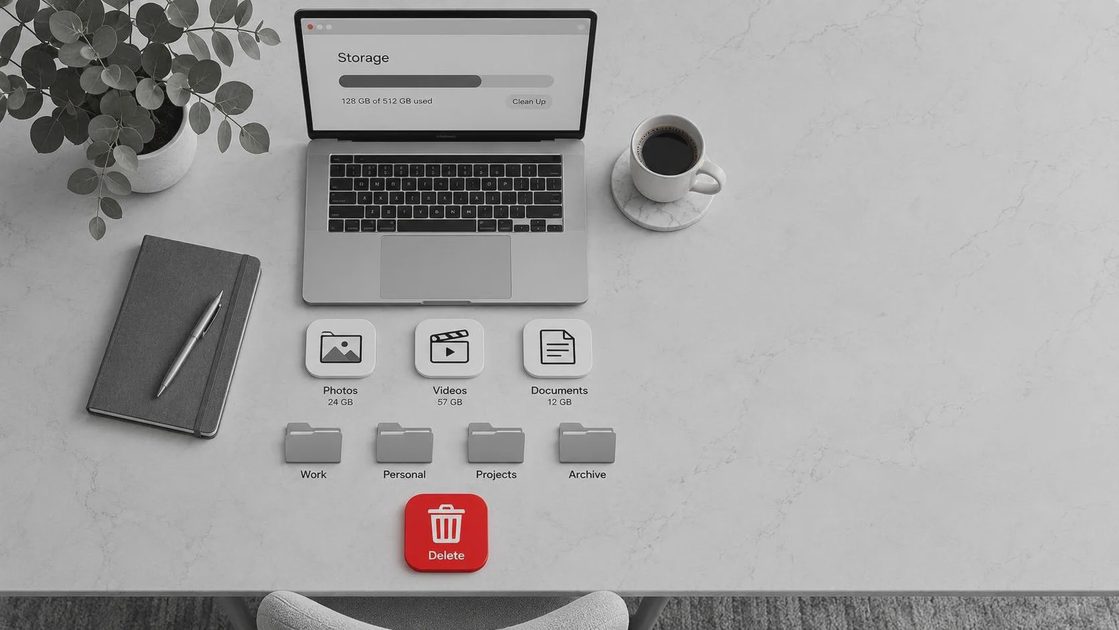
Disk Cleanup is useful for system clutter, but a disk clean up often makes more progress when you look at your own files and apps. Open Settings, then System, then Storage. Windows groups space into categories such as installed apps and temporary files. Category names and available options can vary by Windows version.
Open the largest category and look for items you recognize. A video project, an old phone backup, or an unused game can take up far more room than a collection of tiny temporary files. Sort by size where the option is available, but do not delete something just because it is large. First ask whether you still use it and whether another usable copy exists.
For apps, use Settings to uninstall rather than deleting folders from Program Files. Before removing an app you paid for or use occasionally, check that you can sign in again and retrieve any files or license information you need. Work-managed computers may have restrictions, so leave unfamiliar business software alone or ask your IT team.
Handle downloads, photos, and cloud files carefully
The Downloads folder is convenient precisely because it catches everything: receipts, installers, forms, and the attachment you needed once. Open it in File Explorer and sort by size or date. Delete installers you no longer need, but move useful documents to a folder where you can find them first. A downloaded file is not necessarily backed up just because it came from the internet.
Photos and videos deserve a slower pass. Before deleting a large batch, confirm that your backup is complete and that you can open a few files from it. An external drive or a separate backup service can help, but merely moving the only copy to an external drive is not a backup.
Cloud-synced folders need special attention during a disk clean up. Deleting a synced file can also delete it from the cloud and other connected devices. If you want to retain the cloud copy but free local space, look for your provider’s option to make the file online-only. In OneDrive, for example, the relevant option is often called “Free up space.” Wait for syncing to finish and verify the file is available online before relying on that approach.

Do not manually delete unfamiliar files in Windows system folders. They may be needed by the operating system or by an app, and the space savings are rarely worth the uncertainty.
Make disk clean up a small recurring habit
Windows includes Storage Sense, which can automatically remove certain temporary files. Find it under Settings, System, Storage. Review its settings before turning it on: depending on your choices and Windows version, it may also empty the Recycle Bin, delete older Downloads, or make cloud content online-only. Leave the Downloads option off if that folder holds anything you have not sorted.
For a lighter routine, put a reminder on your calendar every month or two. Spend a few minutes reviewing Downloads, the Recycle Bin, and the largest installed apps. You do not need to inspect every folder. A good system is one you can still live with six months from now.
If space disappears again quickly, return to Storage settings and see which category is growing. An app may be saving large offline files, or a backup may be accumulating locally. Fixing that source is more useful than repeating the same disk clean up every week.
What if you still need more space?
Move infrequently used files to an external drive or appropriate cloud storage, but keep a separate backup of anything you cannot replace. If your drive stays crowded because you regularly work with large files, more storage may be a better answer than constant pruning. Check whether your computer supports an internal drive upgrade before buying one, or use an external drive for suitable files.
Avoid registry cleaners and apps promising dramatic speed boosts from a single click. They add another tool to maintain, and aggressive automatic deletion can remove things you wanted. The built-in tools, a quick review of large files, and a dependable backup are enough for most routine storage problems.