Digital minimalism is not about throwing away your smartphone or pretending technology has no place in a busy American life. It is a practical way to decide which digital tools deserve your money, attention, data, and maintenance time. The goal is not an empty home screen. The goal is a digital life that helps with work, family, finances, and interests without constantly demanding attention.
I think of it as personal maintenance rather than a dramatic detox. You review the tools you use, remove the ones solving no meaningful problem, and create defaults that are easy to keep during a normal, crowded week. A good system is one you can still live with six months from now.
What digital minimalism actually changes
Digital minimalism starts with a question I use before installing an app: What problem is this solving? That question sounds simple, but it separates a useful tool from an attractive distraction. A calendar app might solve scheduling. A second calendar app might only create another place to check.
The same distinction applies to subscriptions. A $10 or $15 monthly service can feel harmless, but five forgotten subscriptions can quietly become $600 to $900 per year. Review your bank and credit card statements for recurring charges, then write down what each service does, how often you use it, and whether a cheaper option already exists.
Digital minimalism also changes how you judge convenience. A new note-taking platform may offer powerful tags, templates, and integrations, but those features create setup and maintenance costs. If your current notes are scattered because you do not have a clear capture habit, adding another platform usually increases the mess. Simplify the behavior before upgrading the software.

Start with a digital clutter audit
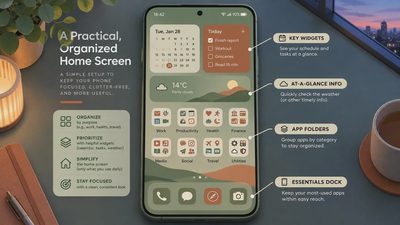
A useful audit takes about an hour and covers four areas: devices, accounts, files, and incoming information. Begin with your phone. Delete apps you have not opened in 60 days, remove duplicate utilities, and move rarely used tools out of your main view. Do not worry about making the screen beautiful. Make it obvious where essential actions live.
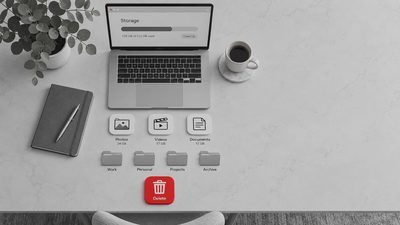
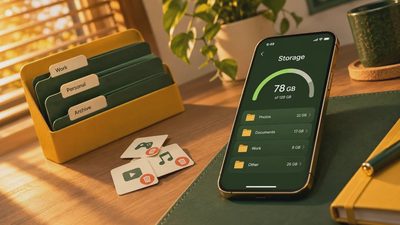
Next, review email and cloud storage. Search for newsletters, promotional mail, and automated alerts that no longer help. Unsubscribe from recurring messages rather than deleting them one at a time. In Google Drive, iCloud, Dropbox, or OneDrive, look for duplicate downloads, old installers, and large videos that already exist elsewhere. Keep important documents in clearly named folders such as Taxes, Home, Medical, and Work Records.
For accounts, use a paper list or a secure password manager. Record the service, login email, renewal date, and whether it is essential. This is not an invitation to create a giant spreadsheet you will never update. It is a short reference that helps you cancel unused services and recover from a lost device.
Reduce notifications before changing devices
Notifications are often the loudest source of digital friction. Open your phone settings and turn off alerts for shopping apps, games, social networks, news, and most promotional services. Keep calls, direct messages from important people, calendar reminders, banking alerts, delivery updates, and security notices.
For work, separate urgent communication from ordinary communication. Email rarely needs a sound. A project-management alert may be useful during work hours but unnecessary at dinner. Use scheduled summaries where available, and set a twice-daily window for reviewing nonurgent messages. This approach protects attention without requiring you to abandon useful services.
Digital minimalism works better when you change the default rather than relying on willpower. Put social apps in a folder, remove them from the first screen, and disable automatic video playback. Charge your phone away from the bed if morning scrolling is stealing sleep. These are small changes, but they reduce the number of decisions required every day.
Choose fewer tools for common tasks
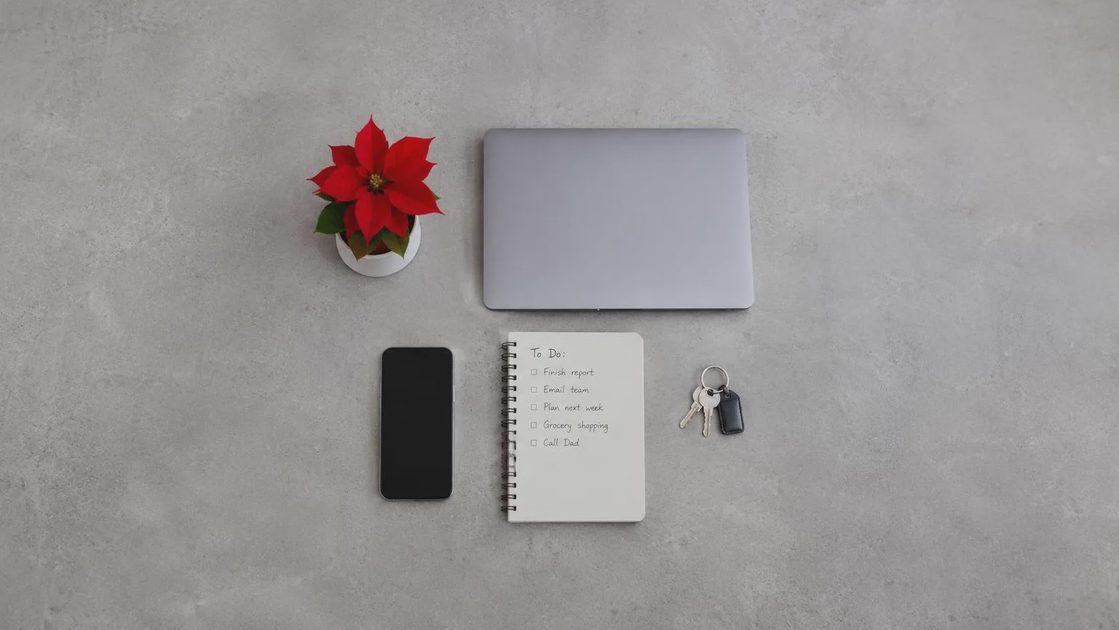
Most people need fewer overlapping tools than they think. One calendar can handle appointments. One task manager can hold actionable reminders. One notes system can store reference material. One cloud service can hold active documents. The exact brands are less important than the boundaries.
Apple users might use Calendar, Reminders, Notes, and iCloud Drive. A Google user might prefer Calendar, Tasks, Keep, and Drive. Someone working across Windows and Android may choose Microsoft To Do, OneNote, Outlook, and OneDrive. None of these combinations is automatically superior. The better choice is the one that fits your devices and requires the least repeated copying.
Before adopting Notion, Todoist, Evernote, Obsidian, or another popular platform, test the basic workflow with what you already own. Capture a task, find it later, complete it, and archive it. If the process feels awkward after two weeks, a more feature-rich tool will not necessarily fix it.
Build a maintenance routine that survives Tuesday
The setup is easy. The maintenance is the test. Choose a weekly 20-minute reset, perhaps Friday afternoon or Sunday evening. During that time, clear downloads, process loose notes, review open browser tabs, check upcoming renewals, and delete temporary files. Stop when the timer ends; the purpose is consistency, not a perfect digital home.
Once a month, review subscriptions and storage usage. Once a quarter, check old devices, recovery email addresses, backup status, and account access. Put renewal dates on your calendar, but avoid filling the calendar with dozens of reminders. A single monthly review can cover several services at once.
Digital minimalism is sustainable when the routine has a clear stopping point. If maintenance regularly takes two hours, the system is too complicated or the scope is too broad. Start with the device you use most and fix the biggest source of friction first.
A practical 30-day reset plan
During week one, list every device, subscription, cloud service, and notification category you use. Do not cancel anything impulsively; gather the facts first. During week two, remove unused apps, unsubscribe from low-value email, and turn off nonessential alerts.
During week three, choose one home for calendars, one home for tasks, and one home for personal notes. Move only active information. Leaving old material in an archive is often safer than spending hours reorganizing history that you rarely open.
During week four, test the system during a normal workweek. Notice where you still search, duplicate, or forget information. Fix those specific points instead of downloading another app. A family may need a shared calendar, while a solo freelancer may need a clearer client folder. The best result is not the same setup for everyone; it is less friction for your actual life.
Digital minimalism is ultimately a decision-making practice. Keep tools that clearly support your responsibilities and interests. Cut tools that create noise, recurring expense, or another inbox to monitor. Start with one screen, one account category, or one weekly routine today. Then give the simpler system enough time to prove that it can handle real life.